Basics
Artwork guide and templates – sizes, what the card covers, and how the pop-out mask works.
Action
Something the player chooses to do during their turn, instead of something that happens by itself. Pick its kind here – Duty, Ferocity, Pray, Agenda or Oath, or a plain action – and the card gets that keyword automatically. A card has at most one action.
Keywords
Some keywords work by themselves (Flying, Stealth, Vanguard): just add them. Others, like Rally, Artifice or Strike, say when something happens: pick one and a box opens under it for what happens. Actions (Duty, Ferocity, Pray, Agenda, Oath) are set up in the Action section above. Ephemeral works by itself (the card leaves your hand at the end of the turn) and is only found on stratagems. The number after each name is how many official cards use it.
Abilities
For abilities that belong to no keyword. An ability is one trigger followed by one or more effects, resolved in order. Entries used by many official cards are the safest choices; ones marked 0 exist in the engine but no official card uses them.
Card text
Preview
Drawn with the game's own frame and art; the in-game text layout can differ a little.
Design data
Game data (the card as the game stores it)
Username
5 to 30 letters, digits, . ' - or _, no spaces. Your cards keep following you under the new name. In-game display names are separate and are not changed by this.
Password
At least 6 characters, no spaces. Changing it signs this account out everywhere except here.
Recovery code
If you forget your password, a recovery code lets you set a new one from the sign-in page (Forgot your password?). It is shown only once and downloaded as a file: keep it somewhere safe, away from this computer if you can. Anyone with the code and your username can take over the account. Making a new code cancels the old one, and using a code uses it up.
Decks
The decks saved on your linked game account. Copy code or Download a deck to share it or keep a backup; anyone can import it here or in the game. These are the game's own deck codes: in the game, Import Deck on the decks screen takes a code from here, and a deck's Share button copies one you can paste below.
Import a deck
Paste a deck code, or choose a deck file. The deck is added as a new deck – nothing you already have is replaced. Decks imported here show up in the game the next time the game starts; to get one straight away, paste the code into the game's own Import Deck box instead.
Game account
A game login file lets the game sign in as this game account without Steam – for another computer, or when Steam is not working – so you keep your decks and progress. Put the file in the game's folder under UserData\WarpforgeRevival\ and start the game. While the file is there the game always signs in with it.
You normally do not need it: signing in from the game's own sign-in window writes this file for you. Treat it like a password: anyone who has the file can play as you. Changing your password or a ban cancels every file and game sign-in at once; signing out in the game cancels that computer's or phone's.
Delete my account
Signs you out of the website and the game everywhere at once, and deletes the account after 7 days. Signing in again with your password before then cancels it. Your game player (decks, progress, friends, recordings), drafts and rejected cards are deleted. Approved cards stay in the game, credited to “deleted account”, and your chat messages still kept are emptied. See the Terms and Privacy notice.
Changing the server needs your password as well as being signed in, so a sign-in left on another computer cannot change it.
Game modes
Match rules for each game mode (content/liveops/GameModes.json). Players get changes the next time they start the game. An empty box means the game's own default. If you change how matches play, also raise the Rules version below: players are only matched with the same rules, and saved replays from older rules stop loading.
Server settings
From content/files/revival-settings.json. Most take effect straight away; players' games pick up game rules the next time they start.
Edit as JSON
Everything in both files, including what the forms above do not show. Each save keeps the previous file in data/config-history/ on the server (the last 30 of each).
Game modes (GameModes.json)
Server settings (revival-settings.json)
Loading the guides…
Bug reports
People
Every account that has been let in (accounts still waiting are on the Requests page). Only admins can change these. Reviewer: approves and rejects cards waiting for review. In-game tester: will get custom cards in the game before release. Admin: everything, including this page. Site access: whether the account may use this site and play on the game server. A banned account cannot sign in to either, and the game player linked to it is banned too.
Requests
Accounts waiting for access, oldest first. Approve lets the account use this site and play on the game server. Decline signs it out and deletes it after 7 days, as Delete does on the People page (signing in again within those days cancels that, and the account waits here again).
Reported chat messages
Messages players reported with Report message in the game's global chat. Checked means the server still had the message and it matches; otherwise the text is what the reporter's game showed. To act on a report, ban the account on the People page (or its game player below). Done takes a report off this list.
Banned game players
For players without a site account, or to ban a game player on its own. A banned player cannot sign in, and a game already running stops working at its next request. Players whose site account is banned (on the People page) are listed here too; unban those there.
Banned now
Word filter
Words blocked in chat (starred out) and in player and account names (refused). One per line; capitals do not matter, and look-alike spellings (sh1t, f.u.c.k, fuuuck) are caught. word blocks the whole word only, word* any word starting with it, *word* it anywhere, even inside other words (careful: that catches innocent words too). Names chosen before a word was added are not changed.
Uploaded artwork
Every picture stored on the server, drafts included, newest first. Delete removes the picture and its mask from the server for good; a card that was waiting for review or approved goes back to its author as rejected.
Card viewer
Every official card, drawn with the game's own frame and art, with the data the game uses for it. Load in editor copies the card into the card creator as a new card, built the same way the game builds it, so you can see how it is made or start from it.
Pick a card from the list.
Official examples
Pick a keyword to see official cards that use it, exactly as the game's card file stores them. Fields a card leaves empty are hidden, and numbers that stand for something are shown with their name, like rally (10). The simplest cards are listed first.
Keyword cheat sheet
What each keyword does, in short. Wording is taken from the unofficial fan rulebook (Warpforge Offline Rulebook 1.5) and shortened; where a card's own text differs, the card wins. X is a number printed on the card.
| Keyword | What it does | Faction | Official cards |
|---|
Stratagem type cheat sheet
A stratagem's type is a label. Other cards use it to find a family of stratagems (“create a random Rune”), and a few types are handled outside the deck. Use Normal unless your card should belong to one of these families.
| Type | What it is | Faction | Goes in a deck | Official cards |
|---|
The short version
- Every card's art is one 1024 × 1024 picture. Bring any size or shape: the card creator's editor crops and scales it for you.
- Troops, vehicles and warlords use a tall painting, background included, in the middle of that square. It does not need a transparent background.
- Stratagems use the whole square.
- Parts that break out over the card frame (a gun barrel, a banner) are optional and come from a second picture, the pop-out mask.
Downloads
art-kit.zip
art-template-unit.png
art-template-stratagem.png
art-mask-blank.png

The templates are see-through. In your paint program, open a template, put your picture on a layer underneath it, line the picture up, then hide the template layer before you export.
Troops, vehicles and warlords
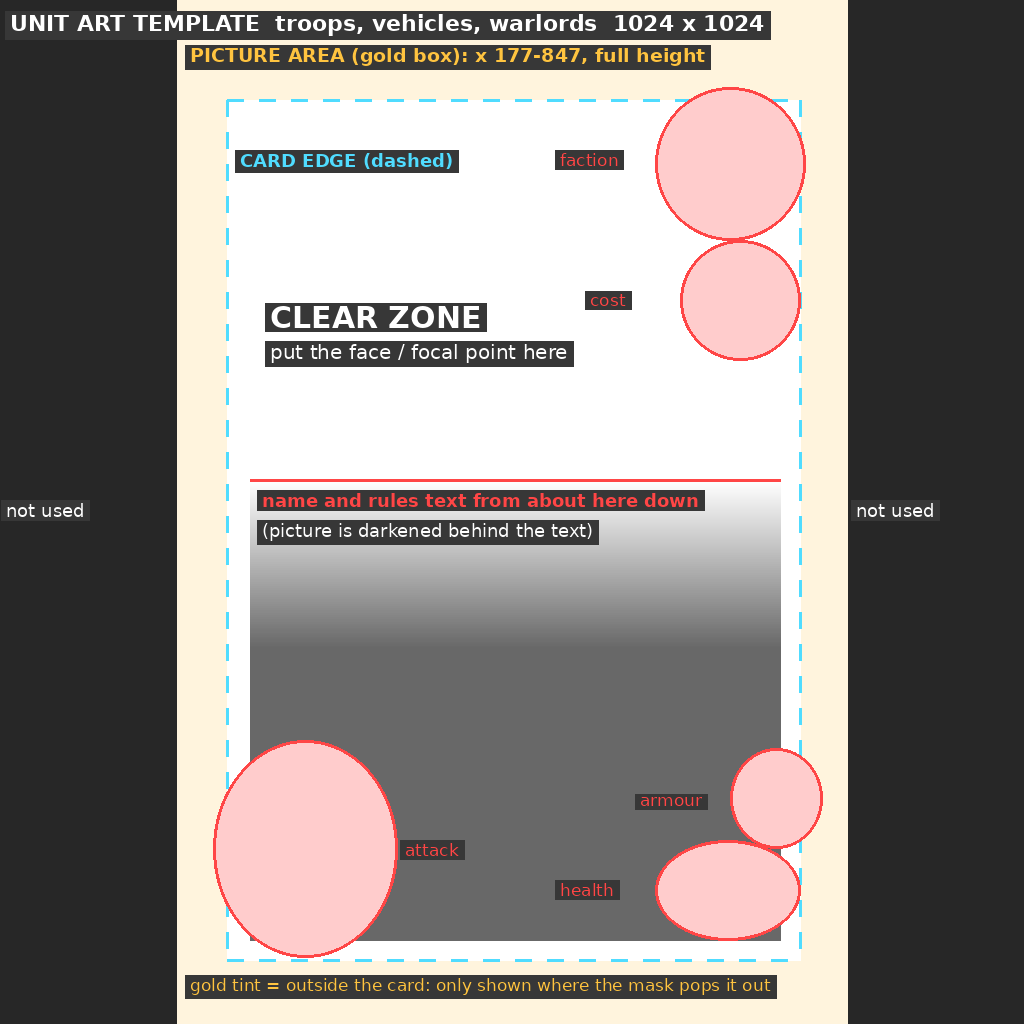
| Guide | What it means |
|---|---|
| Gold box | The picture area: 670 pixels wide (x 177 to 847), the full 1024 high. Fill all of it. Nothing outside it is used. |
| Dashed line | The edge of the card. The frame covers a thin band just inside it. |
| Clear zone | Shown at full brightness. Put the face or focal point here. |
| Red line | The card's name and rules text can start about here. The picture carries on behind the text but is darkened. Short text starts lower, so the picture should still look good down there. |
| Red circles | Covered by the faction badge, cost, attack values, armour and health. |
| Gold tint | Outside the card. Only seen where the pop-out mask says so. |
The pop-out mask (optional)
Official cards let part of the figure overlap the frame. That is controlled by a second picture of the same size: white where the art should be drawn on top of the frame, black everywhere else. Soft grey edges give a soft blend.
- Start from
art-mask-blank.pngand paint white over the part that should break out. Keep it small: a weapon, a hand, a crest. The official cards pop out one or two details, not the whole figure. - The mask must line up with the picture as saved by the creator. The safe way: place and save the artwork in the creator first, then paint the mask over that saved 1024 × 1024 picture.
- No mask means everything stays neatly inside the frame. That is fine, and it is the default.
Stratagems
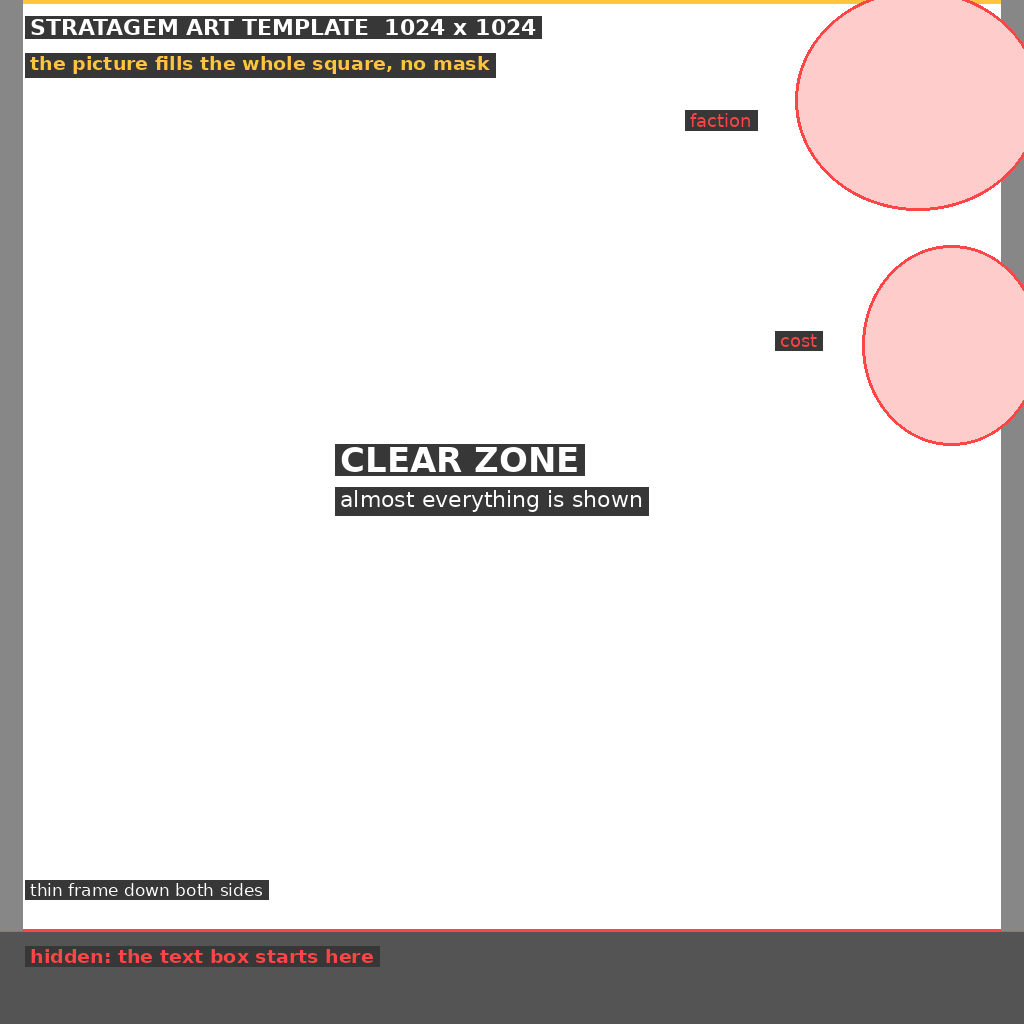
| Guide | What it means |
|---|---|
| Gold box | The whole square is the picture. Fill all of it. |
| Clear zone | Nearly everything is shown. |
| Red circles | Top right corner: covered by the faction badge and the cost. |
| Red line | Below it the card's text box begins, so the bottom strip is hidden. |
Stratagems have no pop-out mask.
Picture quality
- PNG, JPG or WebP, up to 20 MB. The creator saves it as a 1024 × 1024 PNG.
- For units aim for at least 670 × 1024; for stratagems at least 1024 × 1024. Smaller pictures are enlarged and look soft.
- Unit pictures are portrait (about 2 : 3). A landscape picture will be cropped hard at the sides.
- Only upload artwork you made or have the right to use, and follow the card creator rules.
Uploading
- In the card creator, fill in the card, then choose …or upload your own artwork.
- Drag and zoom the picture under the guides (the same guides as the templates), then Use this artwork.
- For a unit, optionally choose Add a pop-out mask and pick your mask picture.
Example: official cards
Four official cards, showing the picture in the art file, the pop-out mask stored with it, and the finished card.
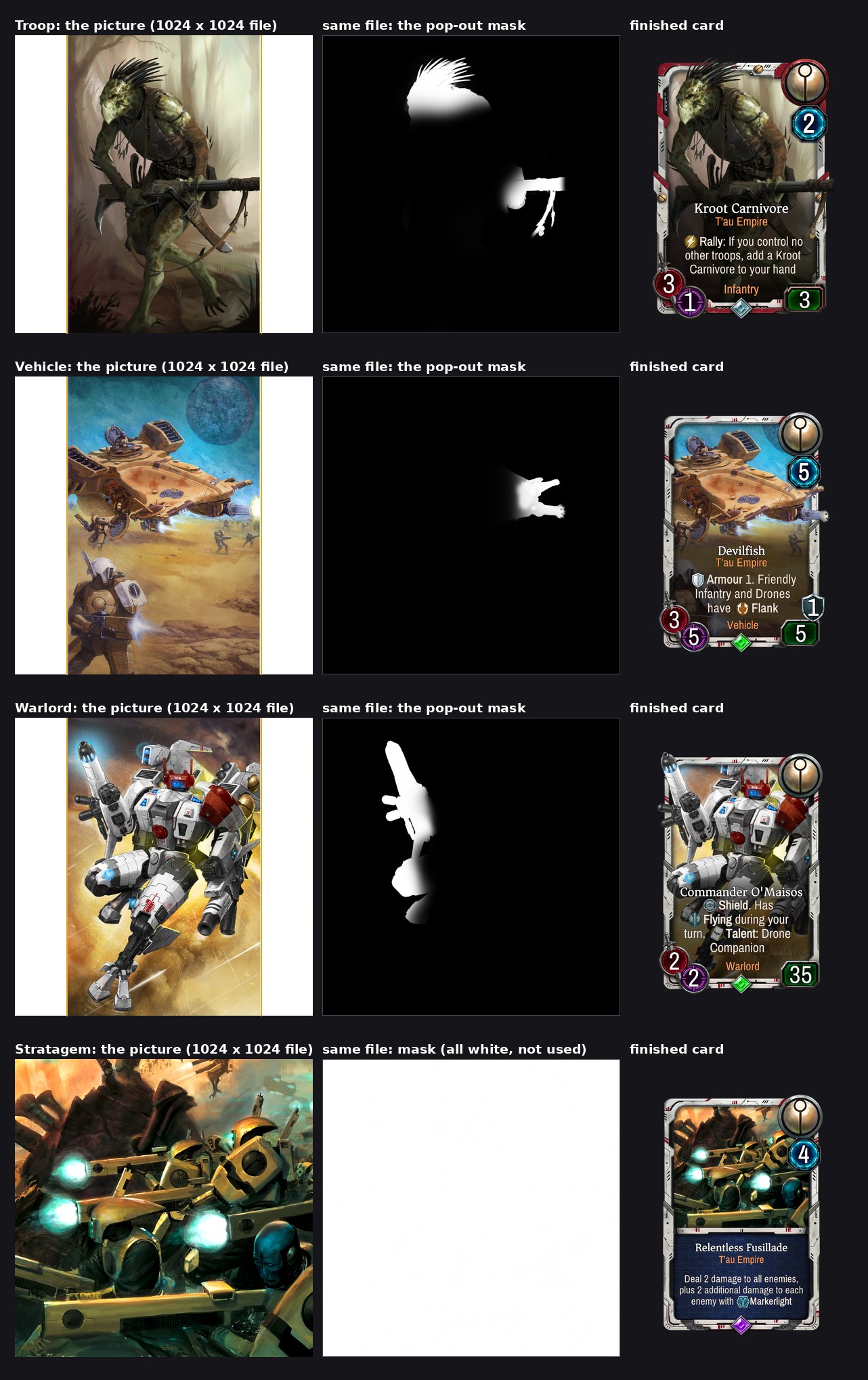
Measurements were taken by lining official art up against finished official cards. Example artwork belongs to its owners and is shown for reference only.
Welcome
Welcome to Warpforge Revival, the community project that keeps Warhammer 40,000: Warpforge playable now that its official servers have closed. Sign in to the game with this same account, design your own cards in the Card Creator, and play against the rest of the community.
An unofficial fan project, not affiliated with Everguild or Games Workshop. You need your own copy of the game.
Community
- Join the Discord - news, install help, finding matches and talking cards
- Install guides - PC, Android phone, and Android on PC with MuMu Player
- Terms and Privacy notice - the rules, what the server keeps, and deleting your account
On GitHub
- Warpforge Revival mod for PC - downloads and install steps (Windows)
- Warpforge Revival for Android - the patcher and a step-by-step guide